Adding a Printer Using Papercut (Mac)
 Print
Print Email
EmailInstructions for how to add a networked printer to your device using Papercut.
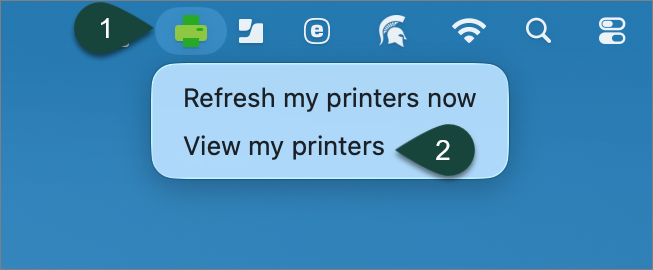
- Select the Green Printer Icon in the menu bar in the upper right corner to open Papercut.
NOTE: You may need to log in to Papercut. If so, Enter your MSU NetID and Password in the Papercut menu that pops up.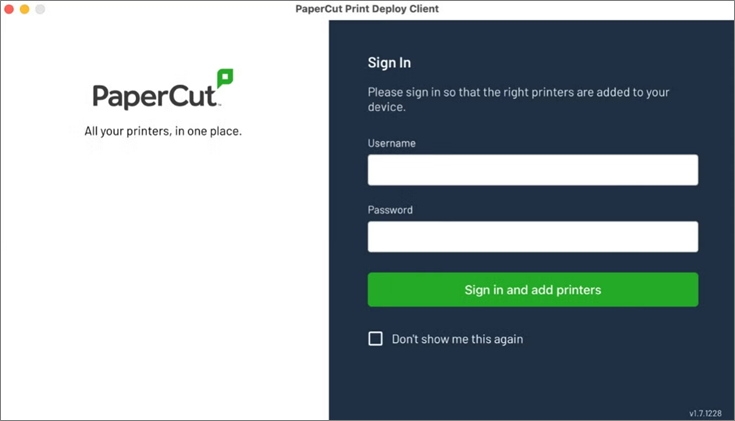
- Select View my printers.
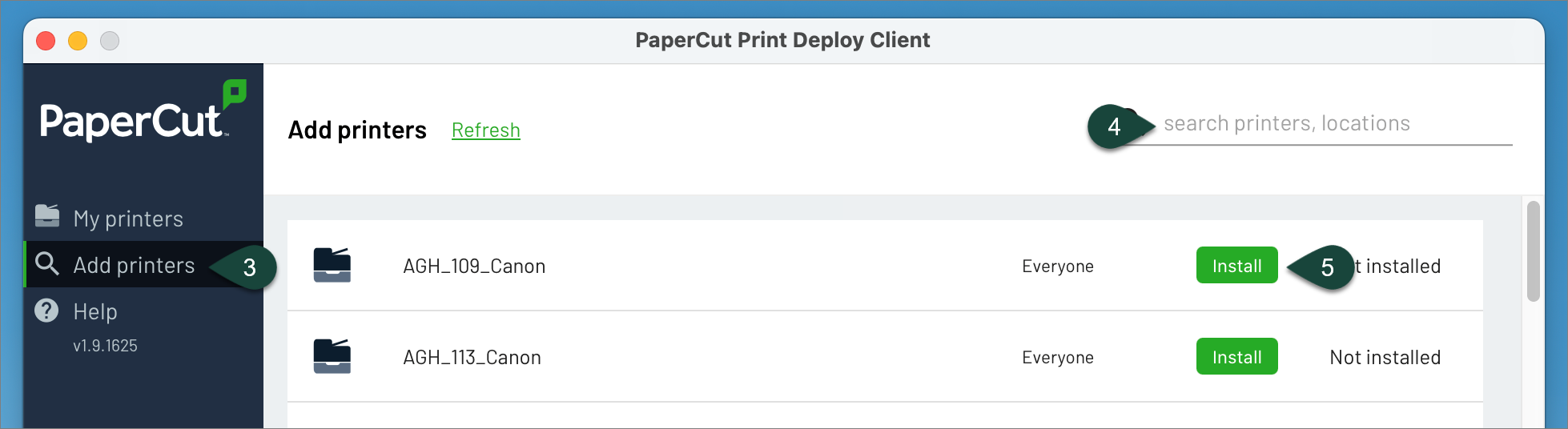
- Select Add Printers.
- Search for your Department or Room Number.
- Select Install for the printer you wish to install. This should install your printer automatically.
Did you find this article useful?
You Might Also Be Interested In
-
In the Field: Jenn Phillips
Published on July 6, 2018
-
Employee Antivirus Perk
Published on September 18, 2023
-
Sending from an Alternate Email Address in Spartan Mail Online (Office 365)
Published on March 31, 2021


-
Mapping a Network Drive (Mac)
Published on June 4, 2020
-
Setting the Default Calendar on Apple Devices (Office 365)
Published on April 22, 2021
-
Sending from an Alternate Email Address in Outlook
Published on March 31, 2021