Creating and Setting Signatures in Outlook for Mac
 Print
Print Email
EmailInstructions on how to create an email signature in Outlook for Mac as well as set the signature active.
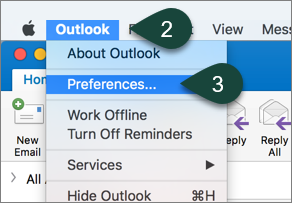
- Open Outlook.
- Select Outlook from the toolbar.
- Select Preferences.
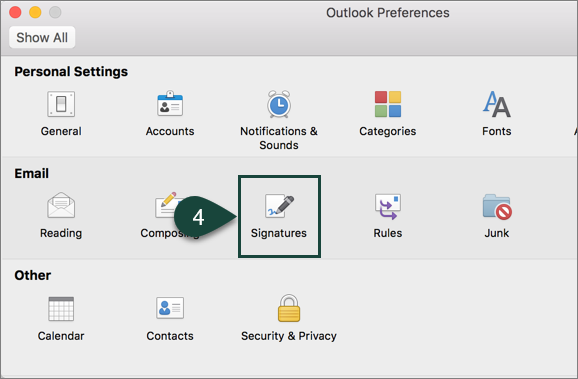
- Select Signatures.
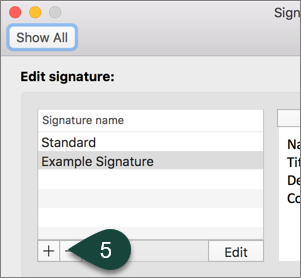
- Select the Plus Sign in the edit signature box to add a new signature.
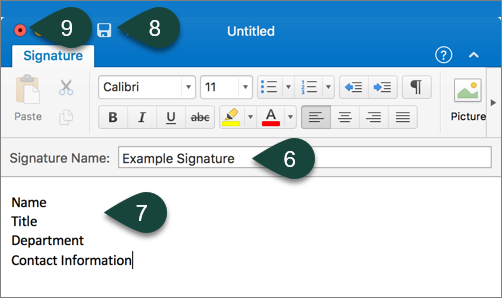
- Enter a Signature Name.
- Enter the Signature Content.
- Select the Save Icon.
- Select the Red Circle to close the window.
- Select your Signature from the New Messages and Replies/Forward drop-down menus.
NOTE: You can have different signatures for each of these if so desired.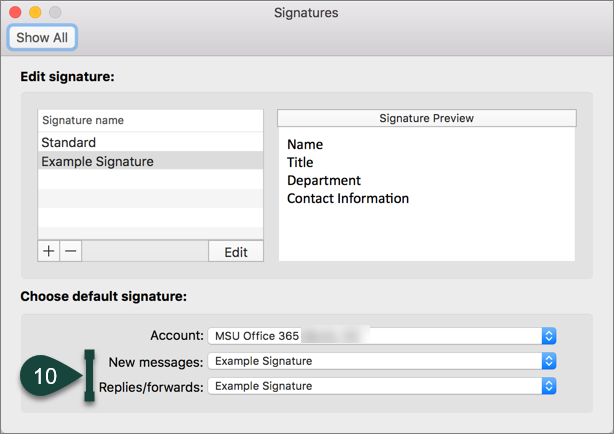
Did you find this article useful?
You Might Also Be Interested In
-
In the Field: Jenn Phillips
Published on July 6, 2018
-
Employee Antivirus Perk
Published on September 18, 2023
-
Sending from an Alternate Email Address in Spartan Mail Online (Office 365)
Published on March 31, 2021


-
Mapping a Network Drive (Mac)
Published on June 4, 2020
-
Setting the Default Calendar on Apple Devices (Office 365)
Published on April 22, 2021
-
Sending from an Alternate Email Address in Outlook
Published on March 31, 2021