Scheduling a Teams Video Meeting using Outlook
 Print
Print Email
EmailInstructions for scheduling a Teams video meeting from within Outlook.
- Open Outlook.
- Go to your Calendar.
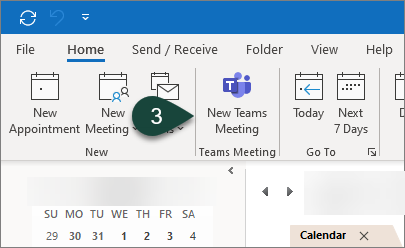
- Select New Teams Meeting from the ribbon.
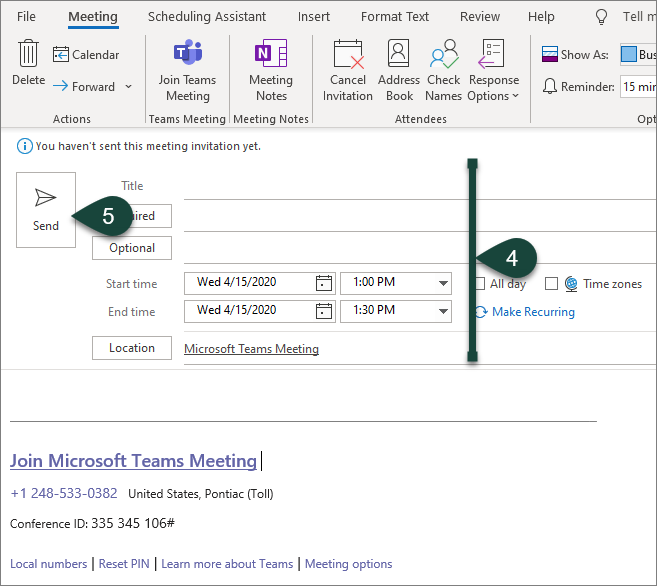
- Enter the appropriate Meeting Information.
- Select Send.
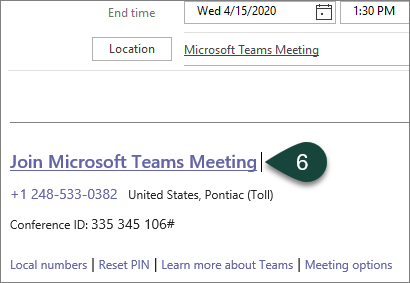
- When it is time for the meeting, Select the Join Microsoft Teams Meeting link in your Outlook calendar invitation which will open the meeting in Teams.
- Ensure your Video and Audio are turned on/off appropriately.
- Select Join Now.
NOTE: You may need to approve some participants entering the meeting, especially if they are from outside MSU.
Did you find this article useful?
You Might Also Be Interested In
-
Scheduling a Video Meeting in Teams
Published on April 24, 2020
-
Using the Teams Video Meeting Toolbar
Published on April 24, 2020
-
Using the Teams Video Call Toolbar
Published on April 24, 2020
-
Starting an On-Demand Video Call in Teams
Published on April 24, 2020
-
Resetting Microsoft Teams using the Self Service App (Mac)
Published on May 4, 2021
-
Clearing the Cache for Microsoft Teams (Windows)
Published on May 4, 2021