Setting the Default Font for Email Messages in Outlook
 Print
Print Email
EmailInstructions for setting the default font used in your email messages using Outlook for Windows.
- Open Outlook.
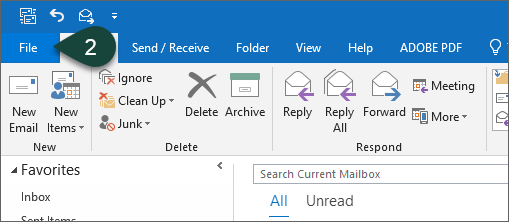
- Select File.
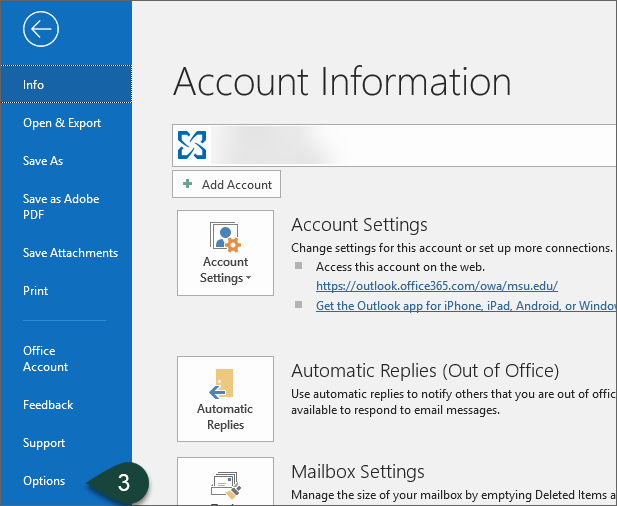
- Select Options.
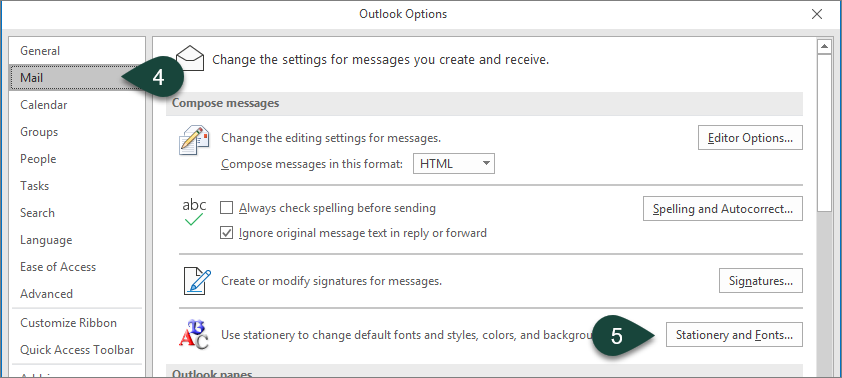
- Select Mail.
- Select Stationary and Fonts.
- Select Font for new mail messages.
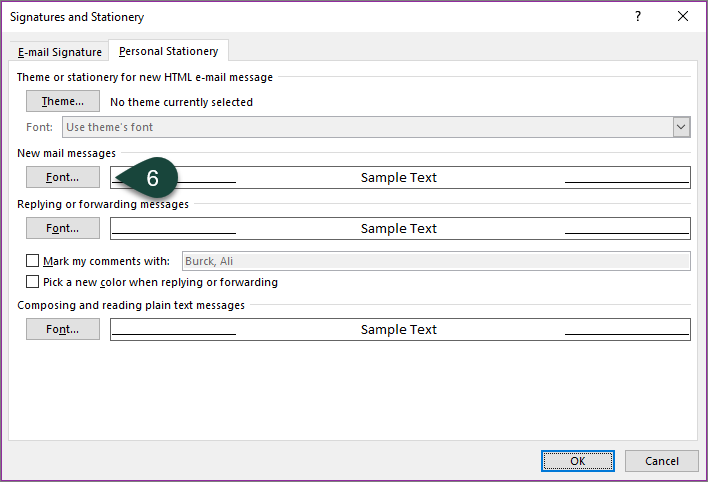
- Select the Font, Style, Size, Color, etc. for your new mail messages.
- Select OK.
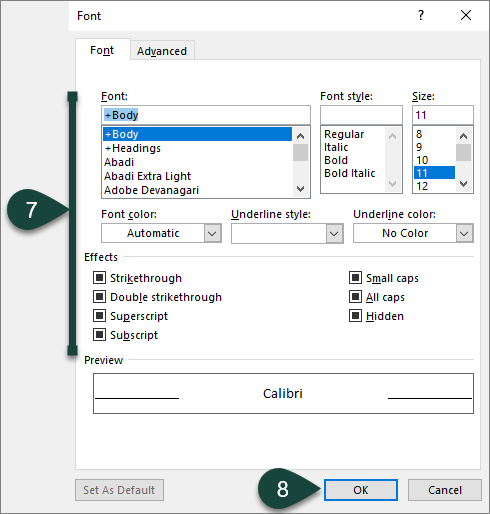
- Repeat Steps 7-9 for Replying and Forwarding messages.
- Select OK.
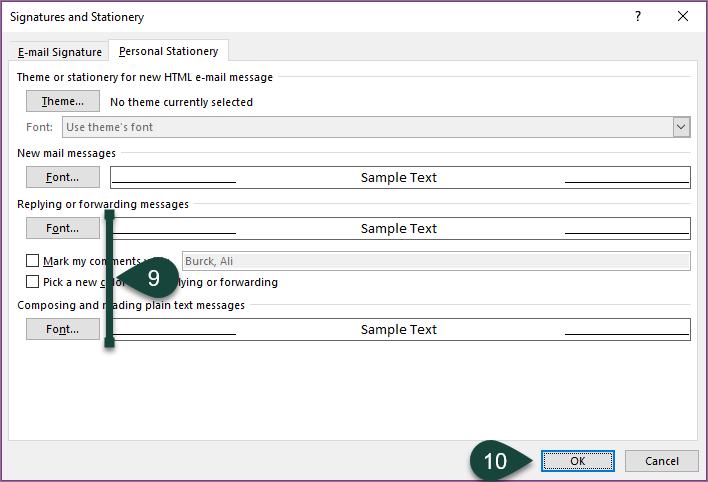
- Select OK.
Your new default fonts will now automatically be used for all new, reply, and forwarded emails sent from this Outlook profile.
Did you find this article useful?
You Might Also Be Interested In
-
Celebrating 100 years of Michigan State University Extension in Alcona County
Published on October 19, 2017
-
Protecting Michigan’s environment and wildlife through the Conservation Reserve Enhancement Program
Published on September 1, 2021
-
MSU named Top 10 agriculture and forestry college in new report
Published on March 23, 2021
-
Hendrick recommended as Dean of College of Agriculture and Natural Resources at MSU
Published on January 25, 2016
-
Creating innovative models to assess spread, possible management of deadly chronic wasting disease
Published on February 1, 2021